
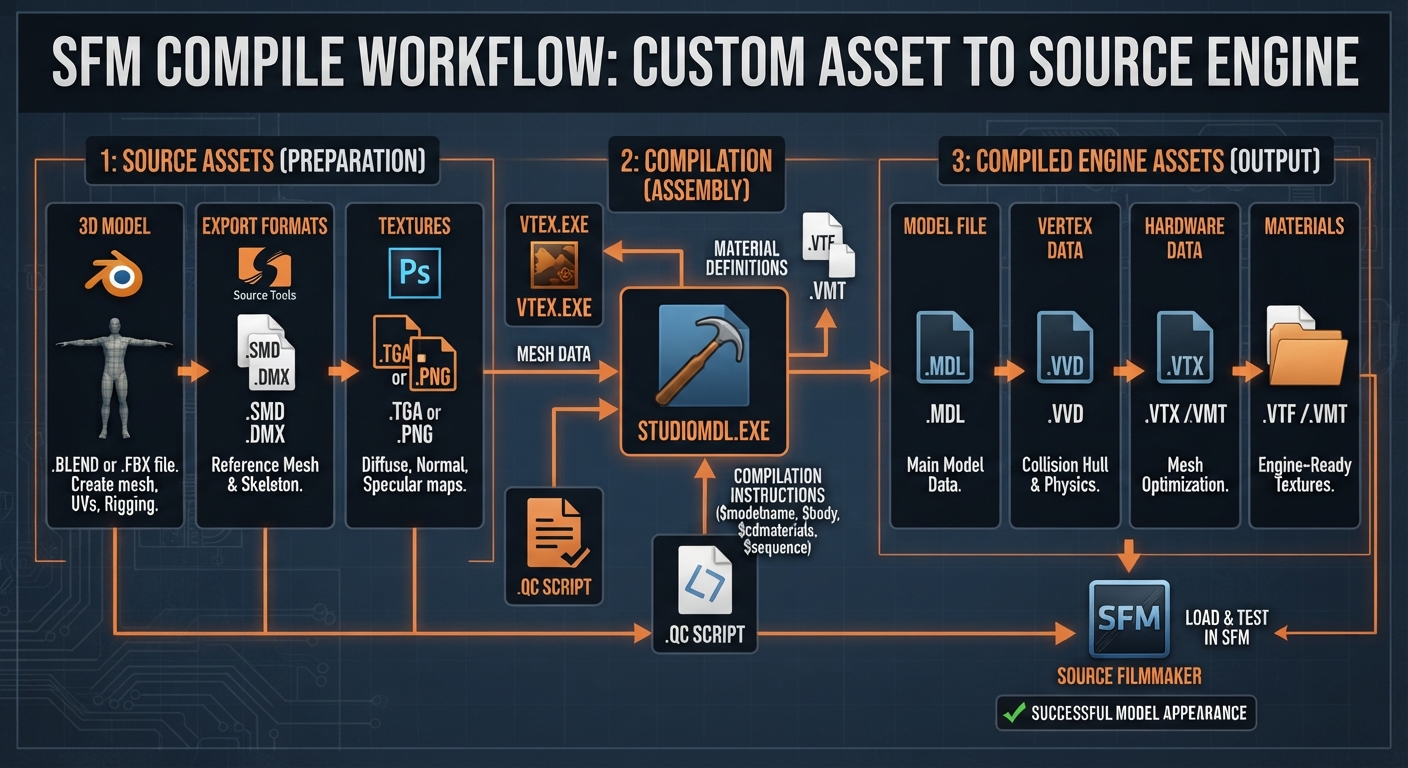
If you are searching for SFM compile, you are usually trying to get a custom model, prop, or animation working inside Source Filmmaker. SFM compile is the process of converting source assets into formats that the Source engine can load and use. A typical model workflow starts with a mesh exported as SMD or DMX, connects it to a QC script, and then sends that information through StudioMDL, often using Crowbar as a graphical interface. The result is a compiled Source model that SFM can recognize.
Quick Answer
SFM compile is the Source Filmmaker asset-compilation process. For custom models, the usual pipeline is Blender/Maya → SMD or DMX → QC file → StudioMDL/Crowbar → compiled model files → Source Filmmaker. Textures and materials must also be placed in the correct Source folders.
The term is sometimes confused with rendering an SFM animation. They are different processes: compiling prepares an asset for the Source engine, while rendering/exporting produces the final image sequence or video.
What Is SFM Compile?
Source Filmmaker, or SFM, uses Valve’s Source engine. Custom models created in applications such as Blender or Maya are not automatically ready to load simply because the original 3D file exists.
The asset has to be prepared for the Source pipeline.
For a typical model, this means:
- Create or edit the model.
- Export it as SMD or DMX.
- Prepare its textures and materials.
- Create a QC compilation script.
- Run StudioMDL, directly or through Crowbar.
- Check the generated model files.
- Put the files in the correct SFM game directories.
- Load and test the model in Source Filmmaker.
Current SFM compile guides consistently describe this model-to-QC-to-compiler workflow as the core meaning of the term.
SFM Compile vs. SFM Rendering
This distinction saves beginners a lot of confusion.
SFM Compile
Compilation prepares assets for use in Source Filmmaker.
Examples include:
- Custom characters
- Props
- Weapons
- Ragdolls
- Animations
- Model materials
SFM Rendering
Rendering takes an already prepared SFM scene and produces:
- Images
- Image sequences
- Video output
So if your Blender model does not appear in SFM, you are probably dealing with a compile/import problem, not a rendering problem.
If your model works correctly but you want to create an MP4 or image sequence, that is a separate rendering/export workflow.
What Files Are Used in an SFM Compile?
Several file types can appear in a typical workflow.
| File | Purpose |
|---|---|
.blend |
Blender project file |
.smd |
Source model, animation, or physics data |
.dmx |
Another Source-compatible asset format |
.qc |
Compilation instructions |
.mdl |
Main compiled model file |
.vvd |
Model vertex data |
.vtx |
Model hardware/mesh data |
.phy |
Physics/collision data when used |
.vmt |
Material definition |
.vtf |
Source texture file |
The important point is that SMD or DMX is not usually the final model format SFM loads directly. The compilation stage creates the engine-ready model data.
Tools You Need for SFM Compile
A basic workflow does not require expensive software.
Source Filmmaker
SFM is the destination application where you eventually test and use the compiled asset.
Its installation also contains Source development tools used by the workflow.
Blender
Blender is a popular choice for creating and preparing custom models.
You can use it for:
- Modeling
- UV mapping
- Rigging
- Weight painting
- Material preparation
- Animation
You then export the relevant asset through Source-compatible tools.
Blender Source Tools
For Blender users, Source Tools can provide SMD and DMX export functionality.
The exact export setup depends on the asset and Source game you’re targeting.
StudioMDL
StudioMDL is the actual Valve model compiler used to process QC instructions and source model data.
This is the component that performs the compilation rather than Blender itself.
Crowbar
Crowbar is a community Source/GoldSource modding tool that provides a graphical workflow around compiling and decompiling models. Its current open-source repository identifies it as a GoldSource and Source Engine modding tool, with dedicated compilation functionality.
For beginners, Crowbar can be easier than manually launching compiler commands because its interface exposes the compile configuration and log.
Understanding the QC File
The QC file is the blueprint for your model compilation.
It tells StudioMDL information such as:
- Where the model should be created
- Which SMD/DMX mesh to use
- Where materials are located
- Which animations are available
- Whether a physics model is included
- Surface properties
A simplified example looks like this:
$modelname "custom/my_prop.mdl"
$body "Body" "my_prop.smd"
$cdmaterials "models/custom"
$surfaceprop "wood"
$sequence "idle" "my_prop.smd"
This example is intentionally basic. A character QC file can contain substantially more information for bones, animations, flexes, body groups, hitboxes, and other features.
The important idea is simple:
The QC file tells the compiler how to assemble the asset.
Step-by-Step: How to Compile a Model for SFM
Step 1: Prepare Your 3D Model
Start with a clean model in Blender, Maya, or another compatible 3D application.
Before exporting, check:
- Object scale
- Rotation
- UV mapping
- Mesh normals
- Bone structure
- Vertex weights
- Material assignments
- Model naming
For characters, pay particular attention to the armature and bone setup.
A technically correct mesh can still fail as an SFM character if its rig or animation data is improperly prepared.
Step 2: Export to SMD or DMX
Export the relevant model data into a Source-compatible intermediate format.
Depending on your workflow, this may include:
- Reference SMD
- Animation SMD files
- DMX files
- Physics mesh
Keep the project organized.
For example:
my_prop/
├── my_prop.qc
├── my_prop.smd
├── my_prop_physics.smd
└── textures/
Good organization becomes especially important once a project contains multiple animations and material files.
Step 3: Prepare the Textures
Source models use their own material pipeline.
Your image textures generally need to be converted into Source-compatible texture files, with accompanying material definitions.
A basic material might look like:
"VertexLitGeneric"
{
    "$basetexture" "models/custom/my_prop"
}
The path is important.
A common mistake is creating the texture correctly but putting it in a directory that does not match the path specified in the material or QC configuration.
Step 4: Create the QC File
Create a plain-text file ending in .qc.
For a basic prop:
$modelname "custom/my_prop.mdl"
$body "body" "my_prop.smd"
$cdmaterials "models/custom"
$surfaceprop "metal"
$sequence idle "my_prop.smd"
Save the QC somewhere convenient and make sure every referenced file actually exists.
A missing SMD, incorrect material directory, or typo can stop the compile.
Step 5: Open Crowbar
If you use Crowbar, select the compile workflow and configure it for your Source Filmmaker installation.
Choose:
- The appropriate game setup
- Your QC file
- The desired compile/output settings
Crowbar’s compiler implementation runs the selected Source compiler and reports its output, making the log useful for diagnosing failed builds.
Step 6: Compile the Model
Start the compile.
A successful build should generate the appropriate compiled model files.
The exact output depends on the model and QC configuration, but commonly includes an .mdl and associated model data such as .vvd and .vtx; physics data may also be generated when configured.
Do not ignore the compile log.
If the compile fails, the first error is usually more useful than the final error displayed at the bottom.
Step 7: Put the Files in the Correct Location
Your compiled model needs to be inside an SFM-accessible game content directory.
A typical structure resembles:
SourceFilmmaker/
└── game/
    └── usermod/
        ├── models/
        │   └── custom/
        │       └── my_prop.mdl
        └── materials/
            └── models/
                └── custom/
The exact location can vary according to your SFM setup and project structure.
Step 8: Test in Source Filmmaker
Launch SFM and open the model browser or animation-set workflow.
Search for the compiled model.
If everything is configured correctly, the model should appear and its materials should load.
Test:
- Model visibility
- Textures
- Scale
- Orientation
- Bones
- Animations
- Physics
- Flexes, if applicable
Do not wait until a large animation project is finished before testing the asset.
Common SFM Compile Errors
Most frustrating SFM problems are easier to solve when you identify which stage failed.
Purple and Black Checkerboard
This usually points toward a material or texture path problem.
Check:
- Does the VTF exist?
- Does the VMT exist?
- Is the
$basetexturepath correct? - Does the directory match the Source material structure?
- Are you using the expected material name?
Do not immediately recompile the model if the actual problem is a missing texture.
Model Does Not Appear
Check the compile output first.
Then verify:
- The
.mdlexists. - The model is inside an SFM-accessible models directory.
- The
$modelnamepath is correct. - The model was compiled for the appropriate Source environment.
- The QC did not finish with an error.
Model Appears in a T-Pose
For characters, investigate the animation and skeleton pipeline.
Possible causes include:
- Incorrect bone names
- Missing animation data
- Incorrect rigging
- Bad weights
- Incorrect QC sequence definitions
A T-pose does not necessarily mean the mesh itself is broken.
Compiler Reports a Missing File
This is one of the easiest problems to diagnose.
Read the filename in the error.
Then verify that the file exists exactly where the QC expects it.
Pay attention to:
- Spelling
- Folder names
- File extensions
- Relative paths
- Capitalization
- Typographical errors
Compile Window Closes Too Quickly
If you run StudioMDL directly by double-clicking it, an error may disappear before you can read it.
Using a command prompt or a tool such as Crowbar gives you a visible compilation log. Crowbar’s source shows that it captures compiler output and error streams during its compile process.
SMD vs. DMX: Which Should You Use?
Both SMD and DMX can appear in Source asset workflows.
SMD
SMD is a long-established Source format commonly encountered in model and animation workflows.
It is straightforward and widely supported by Source-oriented tools.
DMX
DMX is another Valve format that can carry richer structured information.
The best choice depends on:
- Your modeling application
- Export tools
- Target Source game
- Asset type
- Existing pipeline
For beginners, following the format expected by the tutorial or toolchain you are using is often the simplest approach.
Crowbar vs. StudioMDL
These tools are related but should not be thought of as identical.
| Feature | StudioMDL | Crowbar |
|---|---|---|
| Native compiler | Yes | Uses Source compiler |
| GUI | Limited/command-line workflow | Yes |
| QC compilation | Yes | Yes |
| Compile logs | Yes | Yes |
| Decompiling | No primary purpose | Yes |
| Beginner-friendly | Moderate | High |
| Batch/tool workflow | Limited | More convenient |
Crowbar is a tool around the Source/GoldSource modding workflow, while StudioMDL is the compiler that actually processes the model compilation instructions. Crowbar’s current project documentation describes it as a Source and GoldSource modding tool and its code includes dedicated StudioMDL execution and compile-output handling.
How to Make SFM Compilation More Reliable
A few habits prevent a surprising number of problems.
Keep Paths Simple
Avoid unnecessarily complicated project paths.
For example:
C:\SFM\my_model\is easier to troubleshoot than a deeply nested project directory containing unusual characters.
Compile Small Changes
Do not change the model, materials, QC, animations, and physics all at once.
Make one major change, compile, and test.
That makes it much easier to identify what caused a failure.
Keep a Clean QC Template
Once you have a working QC file, save it as a template.
For a new prop, you can duplicate the template and change:
- Model name
- SMD name
- Material path
- Surface property
- Animation
This is much faster than rebuilding the file from scratch.
Read the First Error
Compiler logs can contain several warnings after the original failure.
Start with the first meaningful error rather than trying to fix every line from bottom to top.
Is SFM Compile Difficult for Beginners?
The first successful compile can feel complicated because several systems interact:
3D software → export format → textures → materials → QC → compiler → game folder → SFM
Once you understand that chain, the process becomes much more predictable.
Start with a simple static prop rather than a complex character.
A prop removes many variables associated with:
- Skeletons
- Skin weights
- Facial flexes
- Animation sequences
- Complex physics
- Multiple body groups
Once a simple prop compiles successfully, move on to characters and animated assets.
Best SFM Compile Workflow
For most beginners, a practical workflow is:
- Create or prepare the model in Blender.
- Apply transforms and verify the mesh.
- Export SMD or DMX.
- Prepare VTF textures and VMT materials.
- Write the QC file.
- Open Crowbar or StudioMDL.
- Compile the QC.
- Read the complete log.
- Check the generated model files.
- Load the model in SFM.
- Test textures, scale, bones, and animations.
- Fix one problem at a time and recompile.
This workflow mirrors the structure of current SFM compile tutorials, which consistently emphasize the model → export → QC → compiler → SFM pipeline.
Frequently Asked Questions
What does SFM compile mean?
SFM compile means preparing and converting custom assets into Source-compatible files that Source Filmmaker can load. For models, this commonly involves SMD or DMX files, a QC script, and StudioMDL or Crowbar.
Do I need Crowbar to compile an SFM model?
No. Crowbar is not the only possible route. StudioMDL can be run directly, while Crowbar provides a more convenient graphical interface around the Source/GoldSource modding workflow.
Why is my SFM model showing a purple checkerboard?
The purple-and-black checkerboard generally indicates that Source cannot find or correctly load the required material or texture. Check the VMT, VTF, $basetexture path, and the location of your material files before recompiling unnecessarily.
Why does my compiled SFM character stay in a T-pose?
A T-pose often points to an animation, skeleton, rigging, weighting, or QC sequence problem rather than simply a missing model file. Check the exported skeleton and animation data and verify the relevant QC commands.
What files does SFM compile create?
A typical compiled Source model can include an .mdl together with associated .vvd and .vtx data. A .phy file can also be produced when a physics/collision model is configured.
Conclusion
SFM compile is the bridge between a custom 3D asset and a model that Source Filmmaker can actually use. The essential process is not simply exporting a Blender model; it involves preparing compatible source files, defining the asset through a QC script, compiling it with StudioMDL or a tool such as Crowbar, and then placing and testing the resulting files in the correct SFM environment.
The most useful troubleshooting mindset is to treat the workflow as a chain. If a model fails, check the chain from source model → exported file → textures → QC → compiler → output → SFM instead of randomly changing settings.
Once you successfully compile a simple prop, the same principles can be expanded to characters, animations, physics models, and more complex SFM assets.
